
Page translated by Claude — switch to Italian to read the original article.
In the February 2018 issue of the magazine Nuovo Orione, an article written by Luigi Fontana appeared about the acquisition and processing of images acquired with two different setups.
In the article, in a sidebar, I explained how to apply the composition technique with PixInsight.
This processing example integrates and completes the article, showing, in practice, the result that can be obtained.
The starting images are two shots by Luigi Fontana:
- the RGB was acquired with a Baader-modified CANON 350D and a Nikon 300 f/2.8 telephoto lens (set to f/4) with 20 exposures of 600s (3h20min).
- the Halpha was acquired with a Baker 200mm f/2.3 and an SBIG 11000 CCD, 38 exposures of 600s (6h20min).
PixInsight makes the arduous task of merging two such different images easier.
This article assumes that the reader has a minimal familiarity with the terminology, principles and user interface of PixInsight.
We therefore start with the two master images, still linear, as they come out of the preprocessing stage: it is particularly important to perform a correct calibration of the images to eliminate all possible defects.
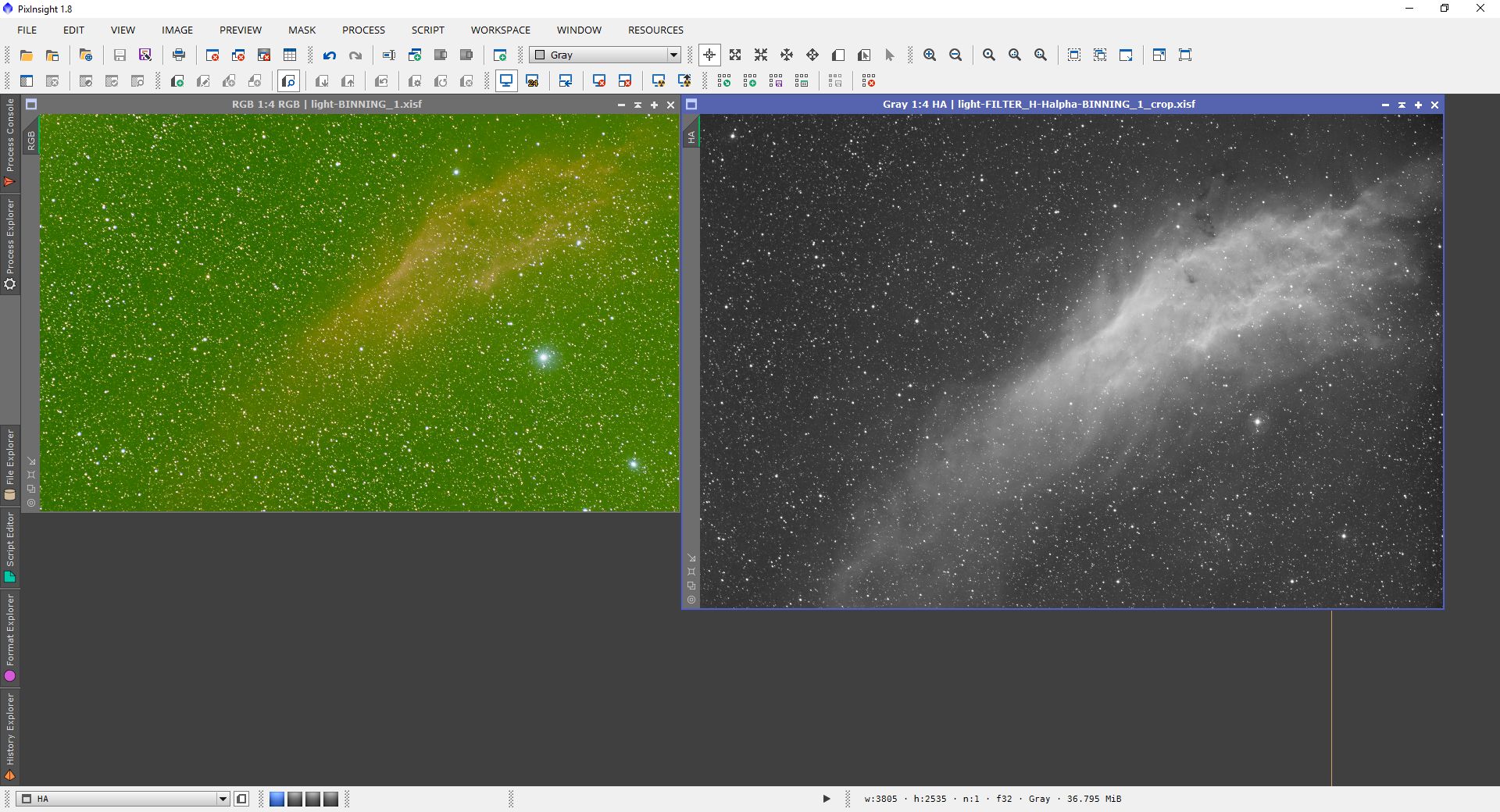
To display the images, apply a histogram transformation on screen using the automatic ScreenTransferFunction (“nuclear” button); remember that this transformation is applied ONLY to the on-screen representation: the data are not modified in any way by the application of this process: the images are still linear.
As can be seen, the RGB image has a strong greenish cast due mainly to light pollution and to a not perfectly white flatbox: this is not a problem since PixInsight is able to correct any casts by means of color calibration.
The first step will therefore be the color calibration of the RGB image, which involves two distinct operations: first the neutralization of the sky background and then the actual white balance.
So create a Preview on the sky background of the RGB image: it is very important that this preview contains mainly sky background, without bright stars and parts of colored nebulosity; it is particularly important to also avoid stellar halos that could create problems.
If, as in this case, the field is very rich in stars, it is possible to create more than one preview in different points to be joined together using the PreviewAggregator script found in the Utilities group.
Once the sample for the sky background has been defined, open the BackgroundNeutralization Process, indicating as the reference image the preview of the sky background or, in case several aggregated previews have been created, the Aggregated image.
The other parameter to set is the Upper limit, which must be slightly higher than the median value of the reference image, obtainable thanks to the Statistics process. As can be seen from the next image, due to the green cast, the median value is higher for the G channel: the reference value to use in BackgroundNeutralization is precisely this one.

To apply the process to the image, it is sufficient to drag the small blue triangle (present in the bottom-left corner of the process window) onto the RGB image: at this point it may be necessary to reapply the automatic ScreenTransferFunction, but the sky background should now be perfectly neutral.
Now it is necessary to proceed with the white balance by choosing a suitable white reference.
To this end we create a preview containing many stars in an area where the nebula is not present, as in the case of the background; if desired, several areas can be selected and then joined with PreviewAggregator.
In addition, it is necessary to provide a reference for the sky background, so that the white balance operation does not alter its color: we will use the same previews created for the BackgroundNeutralization.
However, we will not be able to use the aggregated image created in the previous step (because the color of the sky has changed) so we will recreate it using the PreviewAggregator script again.
The last piece of data needed is the saturation value, that is, the value, between 0 and 1, that a saturated star assumes at its center: this value should be 1, equal to 100% of the dynamic range, but the pre-processing operations and, above all, the neutralization of the sky background, can significantly modify this value, lowering it even by a lot.
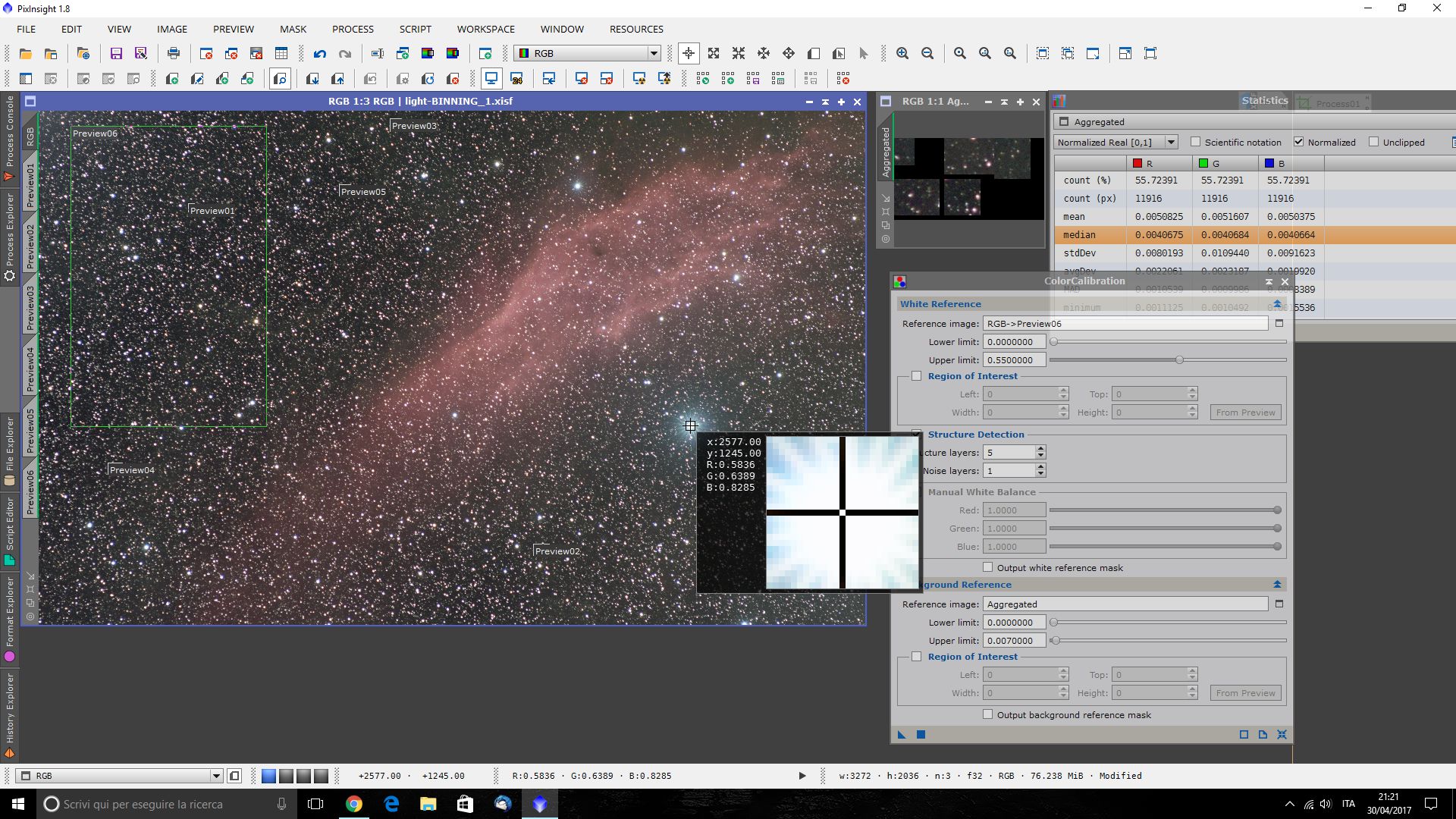
To measure it, use the mouse in “readout” mode (which can be activated from the toolbar with the “crosshair”-shaped button) and point at the center of a saturated star while holding down the left mouse button: the RGB values corresponding to the saturated area will appear (in our image they are about 0.58 0.64 0.83 respectively for red, green and blue) the reference value is the smallest of the three.
The following figure shows the settings chosen for the white balance, in particular note that:
- The large preview at the top left (Preview6) was used as the White Reference
- The "Upper Limit" value of the White Reference was lowered to 0.55 so as to be lower than the minimum of the R, G, B values of the saturated areas and thus exclude these areas (which do not contain chromatic information) from the white balance calculation.
- The Structure detection flag is active, so as to identify the stars and use them for the white balance.
- The Aggregated image is used as the Background Reference
- The "Upper Limit" value of the Background was set to 0.007 so as to be slightly higher than the "median" value of the sky background.
Applying the Process to the image (again by dragging the small blue triangle onto the image) we obtain the white calibration.
At this point the preliminary processing of the RGB image is complete and the time has come to align it to the Halpha image.
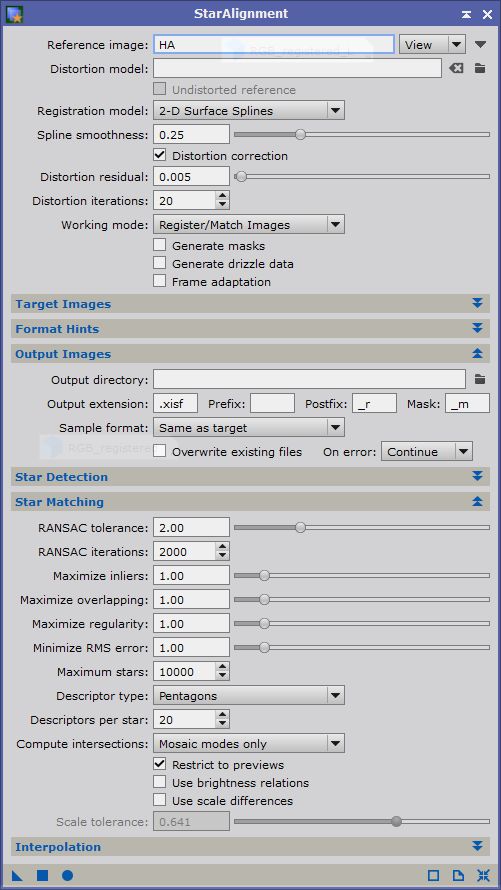
As explained in the article, we use StarAlignment activating the distortion correction: in this case we will use the Halpha image as the reference and align the RGB.
At this point the two images are perfectly aligned, but it may be necessary to crop them in case there are areas not covered by both images: to this end the DynamicCrop process is used.
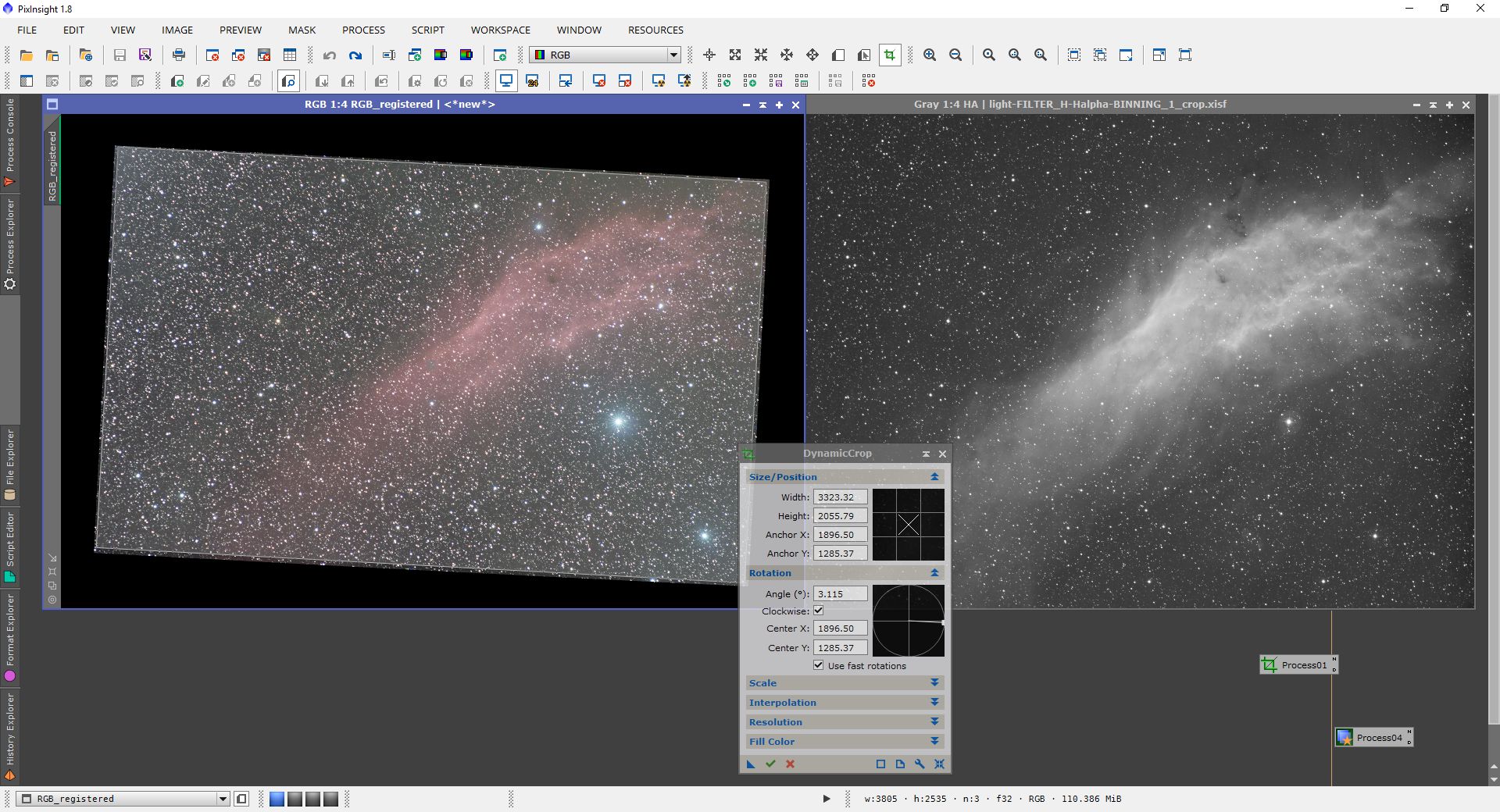
To crop the two images in exactly the same way, define the area of interest on the image that shows uncovered areas (in our case the RGB) and, before applying the Process, save the process icon by dragging the small button with the blue triangle onto the Workspace, saving an instance of the Process.
This icon can then be dragged onto the two images: in this way the crop is perfect and there is no need to realign them.
Now the two images are perfectly superimposable and the time has come to merge them.
The merging technique will obviously depend on the nature of the images: in this case we have an RGB image to be combined with a narrowband one.
The problem with this type of merge is that it is not possible to simply use the Halpha as luminance for the RGB; in fact, thanks to the narrowband filter, the stars on the Halpha image are much fainter than those in RGB, so, after the non-linear stretching that is preliminary to the LRGB merge, they appear smaller.
The nebula, on the other hand, will appear brighter and more contrasted than its RGB counterpart, so by merging the two images one would obtain a complete desaturation of the nebula’s colors (which would acquire a pale salmon color) and, conversely, an oversaturation of the halos around the stars, with the appearance of unsightly colored defects, as can be seen from the following image.

It will therefore be necessary to use a different technique.
There are numerous techniques to merge the Halpha component into an RGB image: in a previous tutorial I explained how to merge the Halpha into spiral galaxies (Enhancing HII regions in spiral galaxies), here we will see a relatively simple way to insert the narrowband component into a nebula.
The method is a simplification of the one described by Vicent Peris on the official PixInsight website (A New Approach to Combination of Broadband and Narrowband Data).
Before actually merging the images, it is possible to perform preliminary operations such as gradient reduction and possible noise reduction in the linear stage.
Once the two images are ready, we can proceed with the merge, which will take place in two steps: first the Halpha, multiplied by a suitable enhancement constant, will be inserted into the RGB so as to recover the difference in dynamic range with the stars.
This operation will improve the visibility of the nebula, but will completely alter the colors.
In the second phase the chromatic balance will be restored using the chrominance channels of the original RGB image.
To insert the Halpha contribution into the RGB image we will use PixelMath, but first it is necessary to determine the sky background value of the image so as to subtract it from it, to avoid altering the sky background value of the RGB image.
So create a small preview in an area of the Halpha image where only sky background is present (a few stars, provided they are not too bright, do not cause problems) and from this generate a new image (Menu Preview-Make Image).
This is the reference image for the sky background and will be called HA_BG; the sky background value can be calculated through the median function of PixelMath: med(HA_BG).
Open the PixelMath process and deactivate the “Use a single RGB/K expression” checkbox, in this way it will be possible to enter three different expressions for the RGB channels.
the Halpha channel is inserted only into the red, once “purified” from the sky background value; the Green and Blue channels instead remain unchanged.
A Symbol N is also defined that allows you to “enhance” the intensity of the Halpha channel before inserting it into the R channel.
Here are the expressions:
R/K: RGB+N*(HA-med(HA_BG))
G: RGB
B: RGB
Symbols: N=35
Where RGB and HA, obviously, are respectively the identifiers of the RGB image and the Halpha one.
The value of N must be determined by trial and error, so it can vary, even by a lot, from image to image.
Before applying the process to the RGB image, activate the “Create new Image” option so as to create a new image (since the RGB will be needed later).
The following image shows the effect of applying the process to the RGB image: by moving the mouse over the image, you see the “before” and the “after”.

As mentioned earlier, the color of the nebula and the stars has changed completely, shifting heavily towards red, but this is not a problem because the chrominance will be restored by taking it from the RGB image with the calibrated colors.
To do this, however, it is necessary to go through a histogram transformation to make the images non-linear.
In the specific case of this processing, for the RGB image a preliminary transformation was first performed using HistogramTransformation and then the procedure was completed through MaskedStretch, so as to show the faintest parts of the nebula while still maintaining a good color on the stars.
To the composite Halpha-RGB image, instead, a transformation with HistogramTransformation equivalent to the AutoSTF (automatic ScreenTransferFunction with the “nuclear” button) was simply applied.
Now, to complete the merge, it is sufficient to extract the luminance channel from the Halpha-RGB image, and then insert it into the RGB image.
However, the desaturation risk described above is always lurking; to mitigate it, it is possible to apply the trick described in Vicent Peris’s tutorial.
First of all it is necessary to modify the RGB working space, making it linear: to do this open the RGBWorkingSpace process, set the three RGB channels all to the same value and, above all, set the gamma to 1.
The process must be applied both to the RGB image and to the Halpha-RGB image.
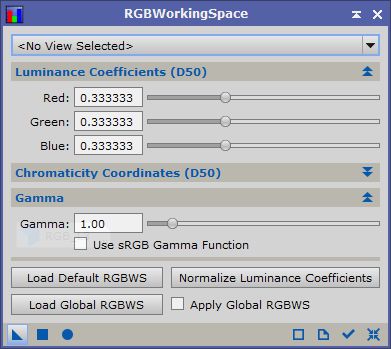
After applying RGBWorkingSpace, apparently, the images will not change, but the way in which the luminance channel is calculated from the RGB values will change; as an example observe the following image, in which on the left the luminance channel extracted with Gamma=2.2 is visible (default setting of the sRGB color space) while on the right the one extracted with Gamma=1 is shown.
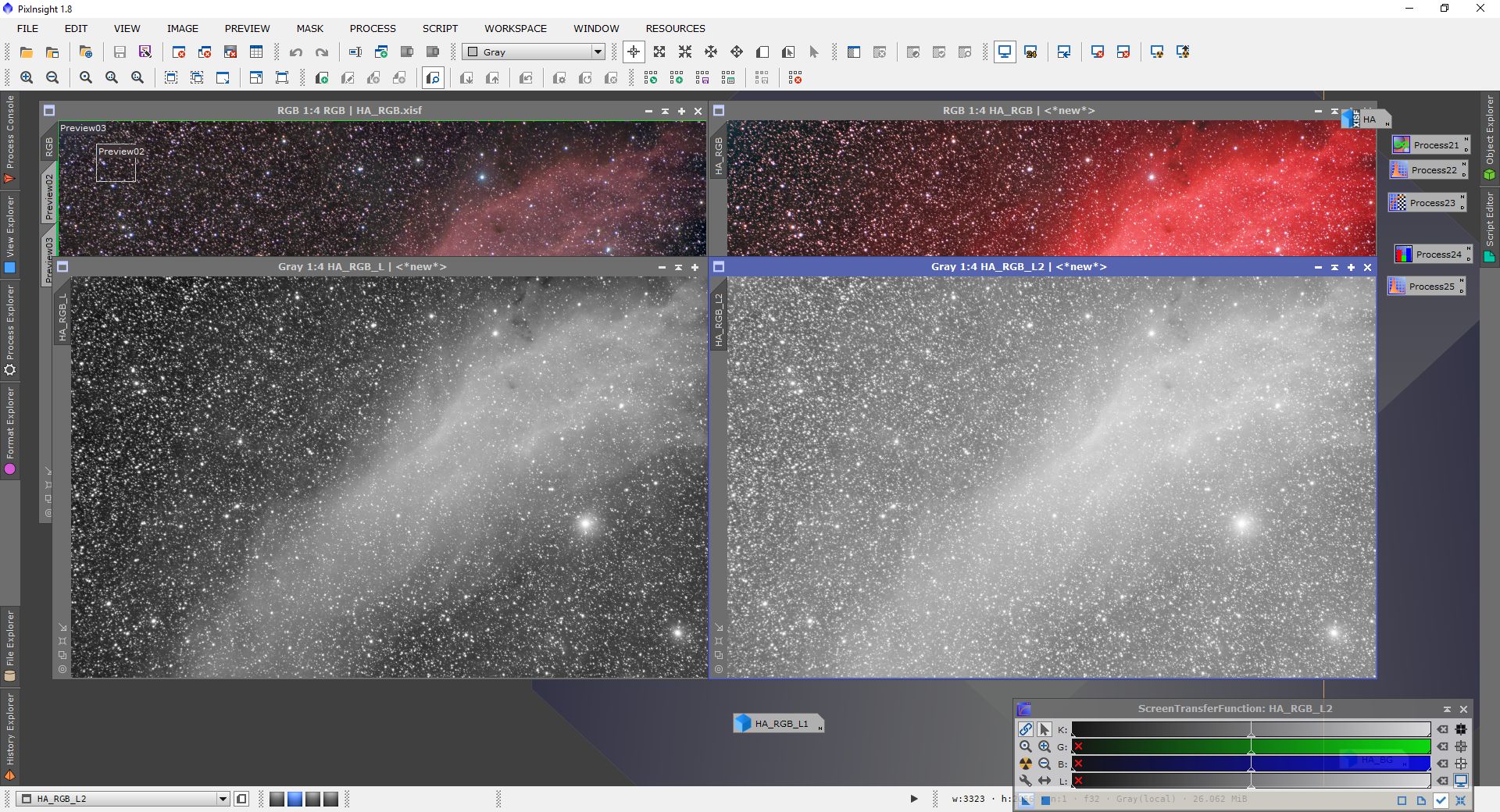
As can be seen, Gamma=1 allows you to have a less contrasted luminance, which is less affected by the saturation alteration effect described above.
After extracting the luminance from the Halpha-RGB image it is sufficient to insert it into the RGB image: to do this you can use the ChannelCombination process or, better, LRGBCombination.
In this second case it is sufficient to indicate the luminance image in the L channel and disable the checkboxes of the RGB channels so that the process integrates the new luminance into the RGB image.
The advantage of LRGBCombination over ChannelCombination is that it is possible to retouch luminance and saturation directly during integration:
The Lightness and Saturation sliders control the transfer curves between L and RGB; if moved to the right they make the luminance darker or the Saturation less intense, if moved to the left they brighten the final image or increase its saturation.
The following figure shows the effect of inserting the Halpha into the RGB image (move over the image to see the effect of the composition):

After integrating the luminance into the RGB it is necessary to restore the default Gamma of the sRGB color space, while still leaving the luminance coefficients all equal.
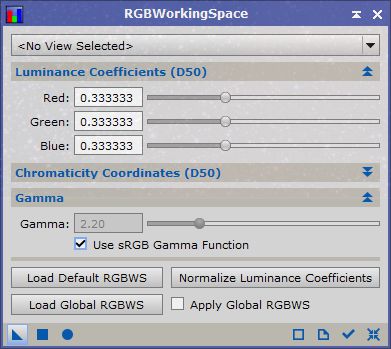
From this point on the processing is analogous to that of a normal LRGB image.
In this case the DarkStructureEnhance script was first used, with the default settings.
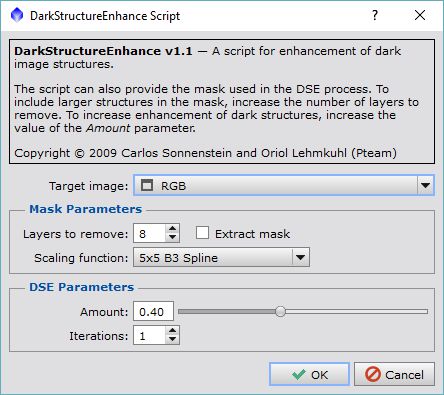
The script highlights the dark nebulae in the upper part of the nebula well.
The next step is to slightly enhance the contrasts within the nebula with LocalHistogramEqualization: this process enhances the contrasts of the structures, but, if used indiscriminately on the whole image, it increases its noise.
For this reason it is necessary to prepare a suitable protection mask on the sky: extract the luminance channel and, through HistogramTransformation, darken the sky background so as to make it completely black.
Then with MultiscaleLinearTransform, blur the mask so as to hide all the details: to do this remove, by double-clicking on the green check mark, a certain number of layers.
The number depends on the subject and must be tried each time: in this case the first 8 layers were removed.
Once the mask is obtained, apply it to the image by dragging the tab with the ID onto the gray band on the left of the HalphaRGB image so as to protect the sky background from the subsequent operation.
Open the LocalHistogramEqualization process, and set the kernel size so as to highlight the details you intend to highlight; in this case a kernel of 80 pixels was chosen to enhance the details of the nebula.
In this case too, the optimal size must be found by successive trials.
The LocalHistogramEqualization Process can be very invasive, giving the image a totally unnatural appearance; it is recommended to use it with extreme parsimony: if you see that the effect becomes too invasive, you can reduce it by lowering the Amount value.
Generally a value between 0.4 and 0.7 is more than sufficient.
On the image below you can see the effect of LHE on the image (move the mouse over the image to see the effect before and after applying the process).

To complete the processing we want to slightly increase the color saturation.
In this case too it is advisable to protect the sky background through a luminance mask; unlike the one created in the previous step, the one for saturation will have to be much less blurred: it is sufficient to remove 2-3 wavelet layers, after darkening the sky background, to obtain the desired effect.
After applying the mask it is possible to increase the saturation through the CurvesTransformation process: activate the S channel on the bottom bar, and draw a convex curve, steeper in the left part of the graph.
In this way the less saturated areas will be saturated more, acting instead more mildly on the already saturated regions.
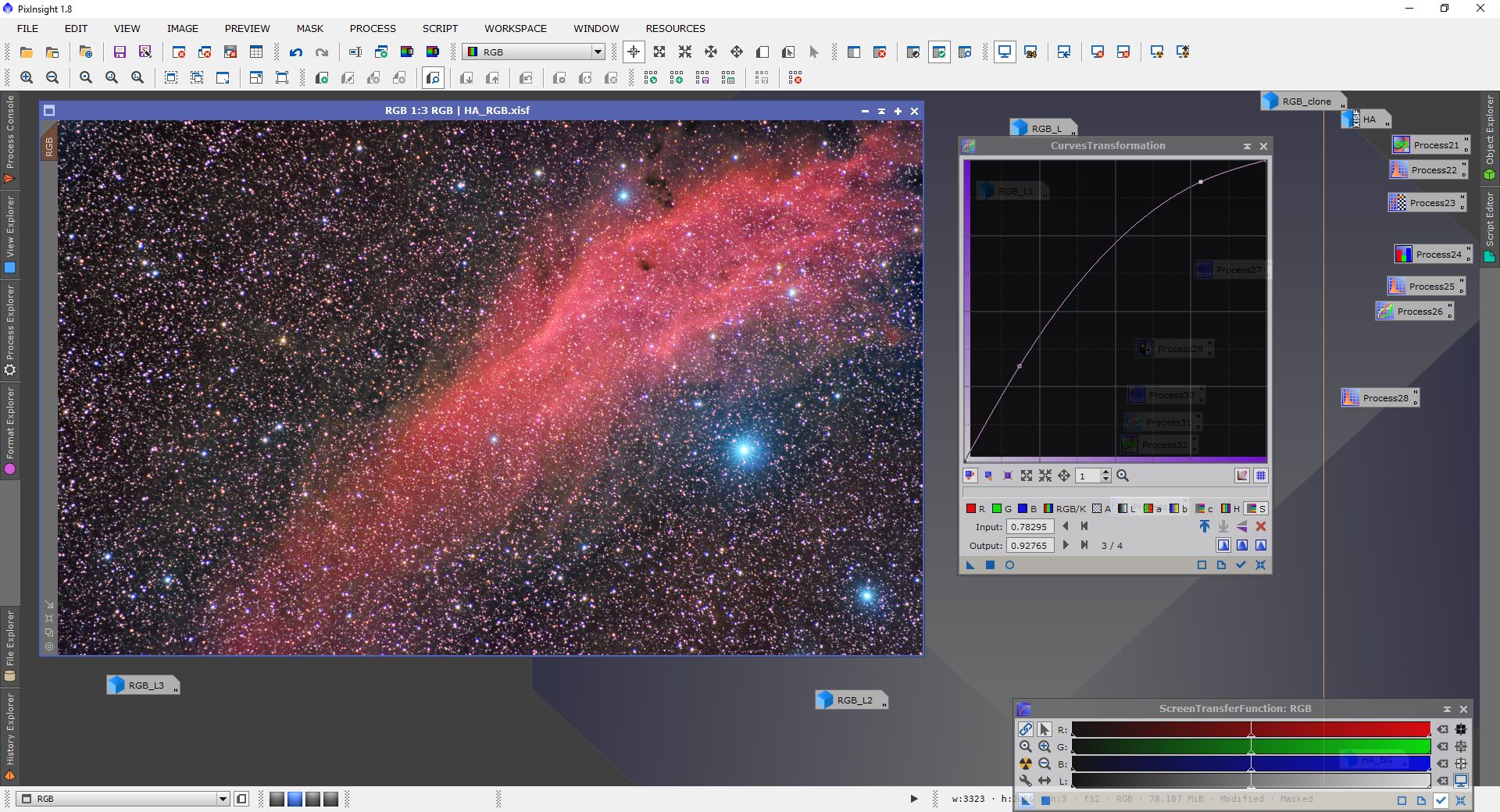
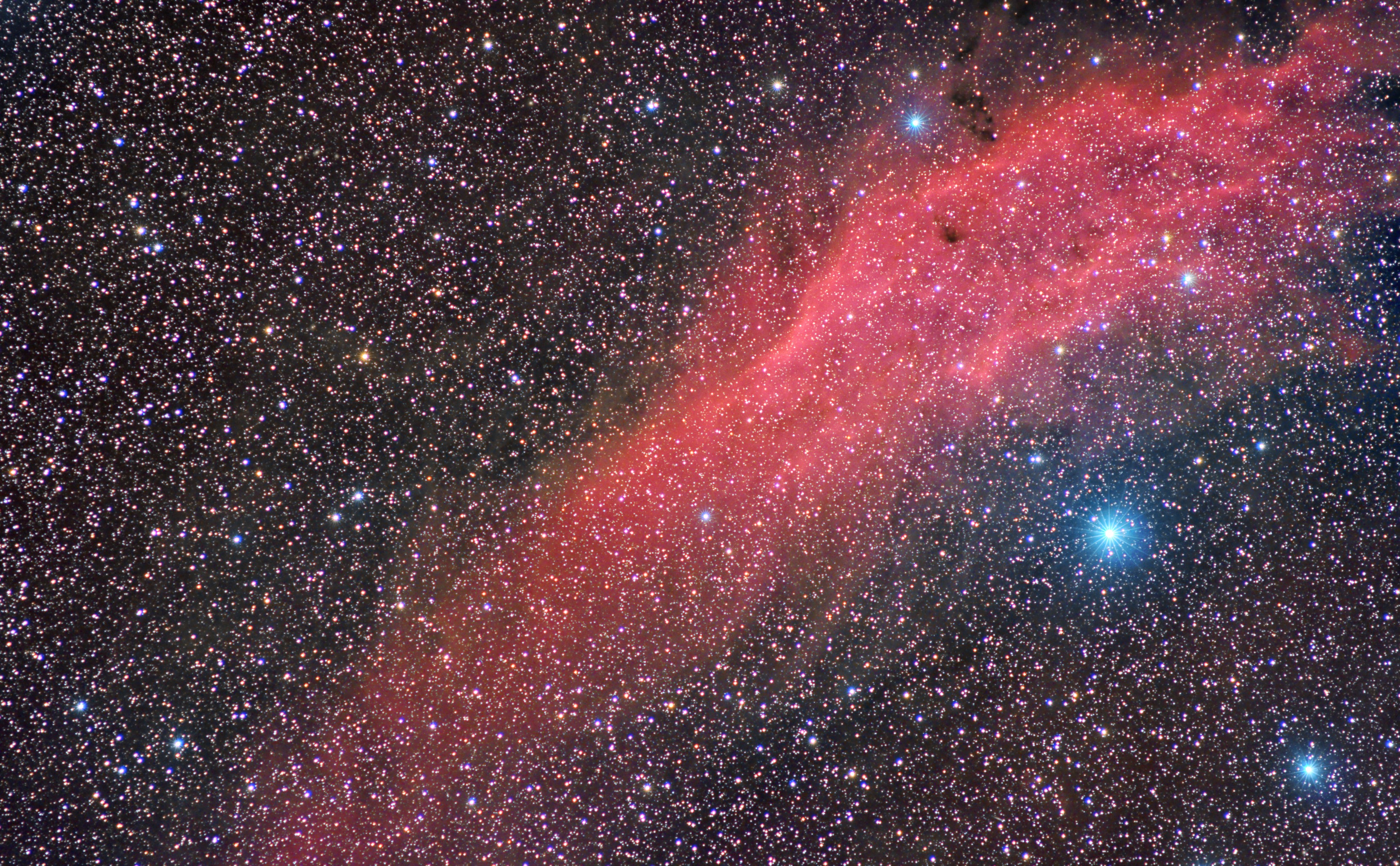
And here is the complete image: Click to see the full-resolution version.
I thank my friend Luigi Fontana who kindly made his images available for this tutorial.